

This month’s updates help you identify client income protection gaps, evaluate planning strategies more efficiently, and create more informative client experiences. From the new Disability Insurance Module in Needs Analysis to enhanced Plan Comparison capabilities, expanded Decision Center reporting, and streamlined Roth conversion management, these releases help bring more of the planning process into a connected workflow while supporting more confident recommendations.
September Updates
August Updates
July Updates
Remind me of all recent updates from last quarter!
Released September 30
Disability events can quickly disrupt a client’s financial plan. Even clients who save consistently may need to tap into retirement assets early to replace lost income, creating long-term gaps in funding their financial future.
To help advisors address this risk, Needs Analysis now includes a Disability Insurance module.
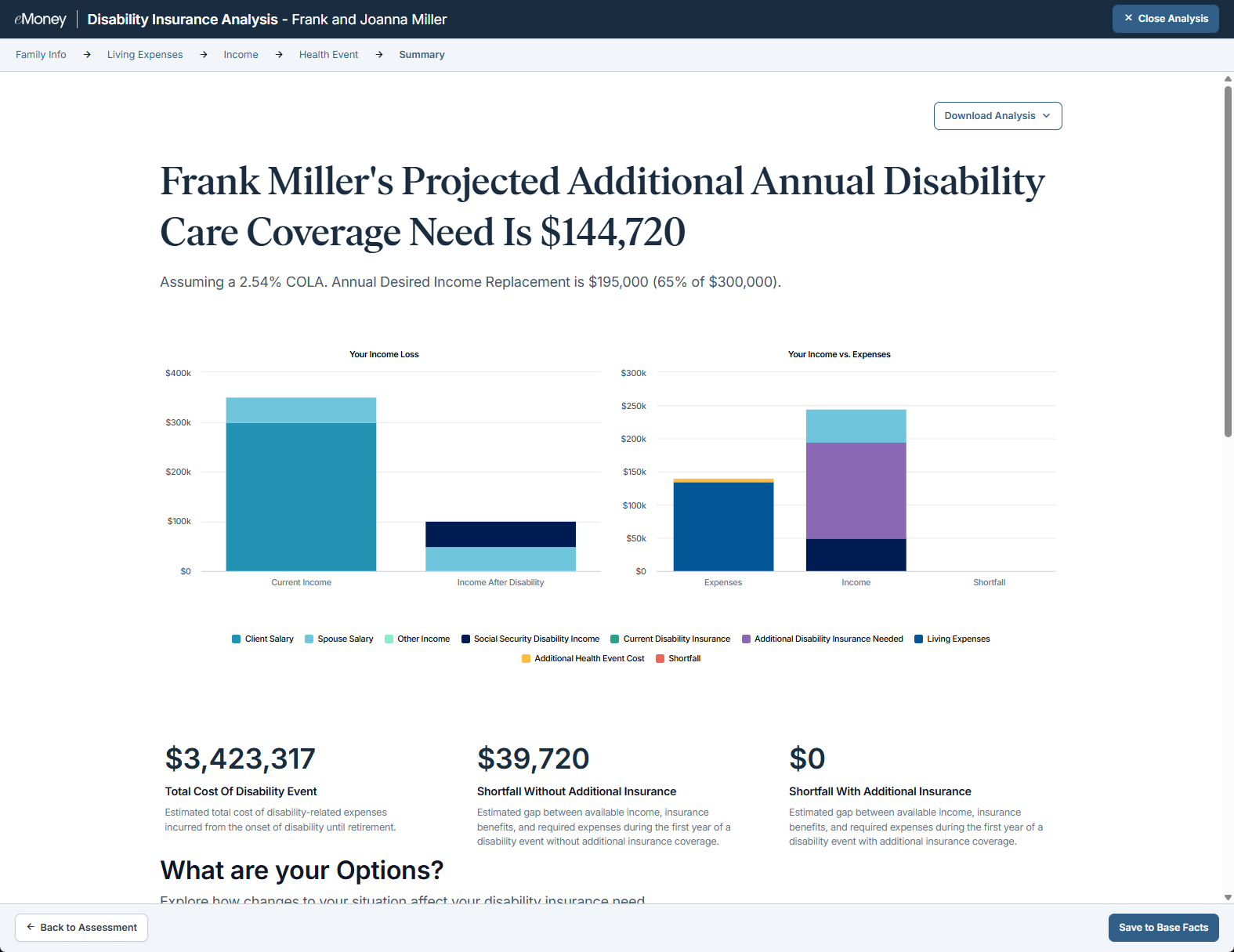
Disability Insurance is the eighth Needs Analysis topic and builds on the core protection planning set alongside Life Insurance and Long-Term Care.
Why This Matters to You
What’s New
This new Disability Insurance topic expands your protection planning capabilities, helping you evaluate whether clients have sufficient income protection coverage to maintain their lifestyle if they become unable to work.
How It Works
Use It When…
Use this module when reviewing protection planning needs, evaluating disability coverage, or assessing how a loss of income could impact a client’s financial plan.
Get Started
Open Needs Analysis, select Disability Insurance, and complete a new analysis to identify coverage gaps and explore potential solutions with your clients.
Sunset Reminder: With the release of Disability Insurance, we have now rebuilt modules representing more than 80% of classic Needs Analysis usage while also introducing new topics such as Debt Paydown. We plan to sunset classic Needs Analysis on December 2, 2026. We encourage advisors to begin using the updated modules today.
Released September 30
Not every prospect or plan participant is ready to commit to a full financial plan or Client Portal experience. But that doesn’t mean they aren’t looking for insight into their financial situation.
For advisors, this can create a gap between initial interest and the point when someone is ready for a deeper planning relationship. The new Financial Assessment, now available for Premium Client Portal users, helps bridge that gap and provides an approachable way to engage earlier, demonstrate value, and understand financial needs.
Why This Matters to You
Financial Assessment gives you a simple way to engage prospects and plan participants earlier in their financial journey, without requiring significant time upfront.
Through a branded, self-guided experience in Premium Client Portal, prospective clients can quickly gain a personalized view of their financial situation. In turn, you can identify engaged individuals and create natural opportunities to move from an initial interaction into a deeper planning conversation.
What’s New
Financial Assessment is a branded, self-guided experience within Premium Client Portal that provides prospects and plan participants with personalized financial insights in just minutes.
Built on the same eMoney platform you already use, it extends your planning experience to individuals who aren’t yet ready for a traditional planning engagement.
As those relationships progress, their information remains within the eMoney platform, helping reduce duplicate data entry and creating a more seamless transition from prospect or plan participant to planning client.
How It Works
Financial Assessment provides individuals with a lighter entry point into the planning experience:
Their information stays connected within the eMoney platform if the relationship progresses. The result is an experience that delivers value to individuals quickly while giving you a scalable way to build relationships earlier.
Use It When…
Financial Assessment can be especially valuable when you want to:
For growth-oriented advisors serving both wealth clients and retirement plans, Financial Assessment can help turn participant engagement into new opportunities for deeper financial planning relationships.
Get Started
Financial Assessment is available to Premier users with Premium Client Portal and those who have Premium Client Portal as an add-on.
Curious about Premium Client Portal for your business? Explore Premium Client Portal to learn how you can deliver a more personalized, branded experience and strengthen client relationships.
Released September 30
Advisors need to evaluate recommendations under changing life events and market conditions while efficiently moving approved strategies into action. Plan Comparison now includes What-Ifs and Save to Base Facts, making it easier to compare potential outcomes, stress-test recommendations, and transition from planning to implementation.
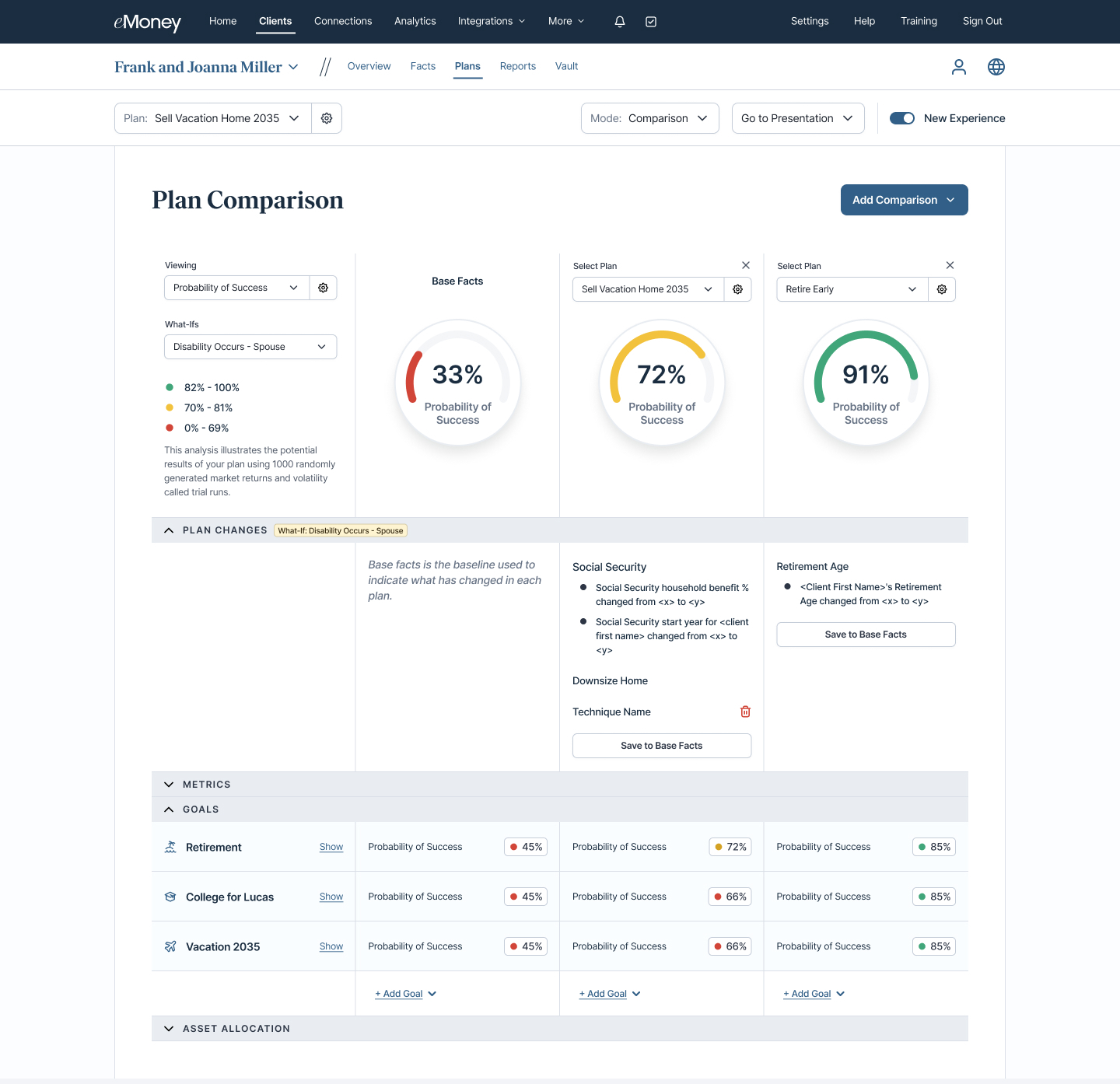
Together, these updates support more collaborative planning conversations while creating a more connected path from evaluating options to putting them into action.
Why This Matters to You
These enhancements help advisors:
What’s New
Plan Comparison now includes two enhancements that support both recommendation analysis and plan implementation: What-Ifs and Save to Base Facts.
What Ifs
Apply the same What-If scenario across every plan in a comparison, including Base Facts and eligible Advanced Planning or Foundational Planning plans. Instantly see how outcomes change side by side to assess how different strategies perform under the same circumstances.
Note: What-If availability varies by planning experience. Advanced Planning supports a broader range of What-If scenarios, while Foundational Planning currently supports Premature Death (Client) and Premature Death (Spouse).
Save to Base Facts
Once a preferred strategy is selected, Save to Base Facts allows advisors to apply eligible plan changes directly from Plan Comparison. Review which changes will be transferred, then save them to establish a new planning baseline without manually recreating approved recommendations in Facts.
How It Works
What-Ifs
Save to Base Facts
Note: What-If scenarios are available for evaluation and comparison purposes only and cannot be saved to Base Facts.
Use It When…
A client is evaluating multiple retirement, protection, or wealth transfer strategies and wants to understand both the opportunities and risks associated with each approach. Compare potential outcomes, stress test plans against unexpected events, and then quickly move forward with the recommendations that best support the client’s goals.
Get Started
Open Plan Comparison to compare strategies, apply What-If scenarios, and save eligible plan changes directly to Base Facts.
Released September 30
Trying to refine retirement income and tax-planning strategies while moving between multiple planning experiences can slow down the planning process. Now you can make Roth conversion adjustments without leaving Foundational Planning, helping you build and refine plans more efficiently.
Why This Matters to You
What’s New
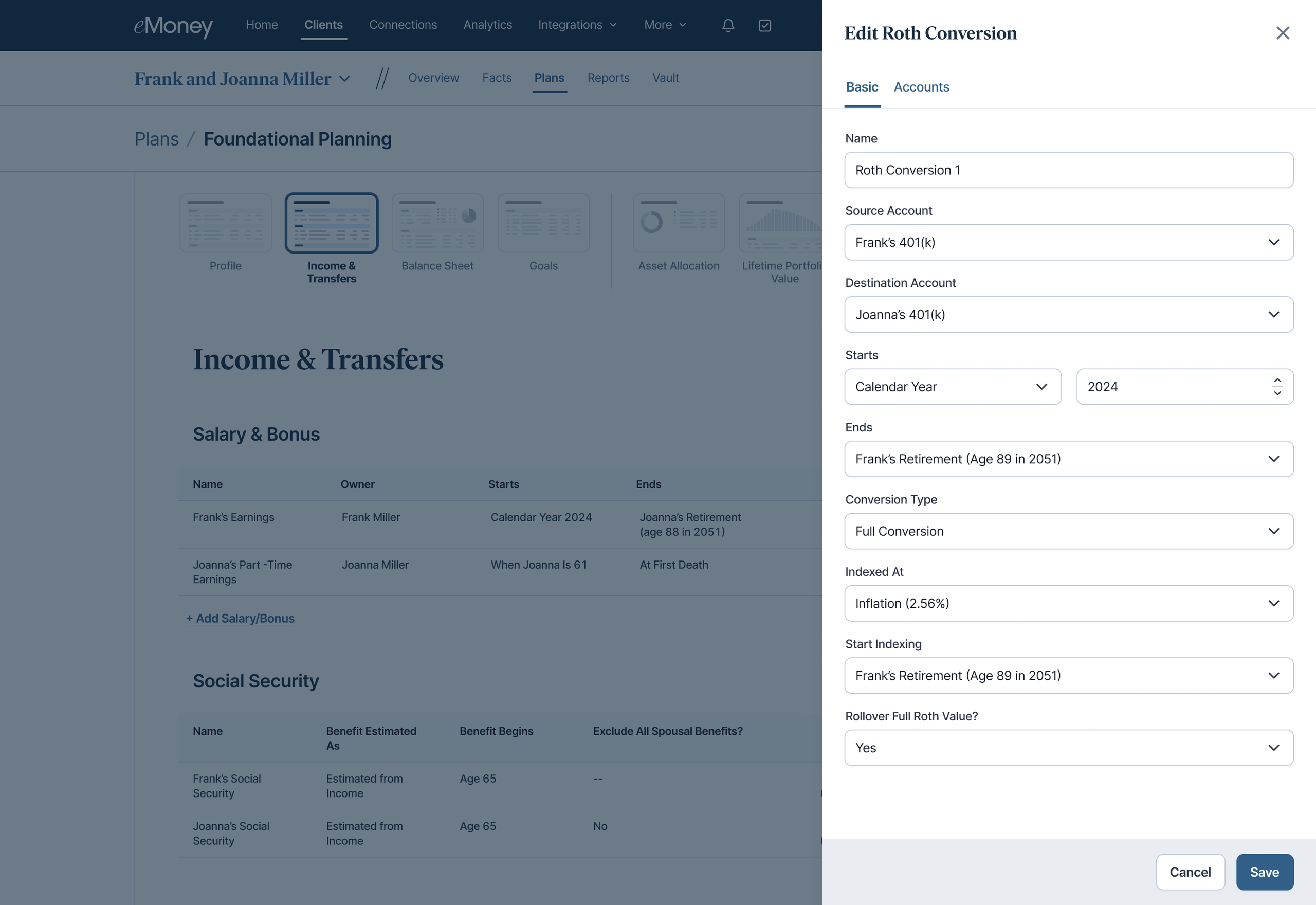
Roth conversion strategies are now part of the Foundational Planning experience. Instead of leaving your plan and switching to Fact Finder, you can create and manage Roth conversions alongside retirement income and tax-planning recommendations from a single location.
How It Works
Within Foundational Planning, the Income section has been renamed Income and Transfers and now includes a dedicated Roth Conversion section.
Using this workflow, you can:
Use It When…
You’re refining a client’s retirement income and tax-planning strategy and need to adjust Roth conversion recommendations as part of the broader plan.
Get Started
Open Foundational Planning and navigate to Income and Transfers. From the Roth Conversion section, you can create, review, edit, and manage Roth conversions as part of your planning workflow.
Released September 30
The best planning conversations happen when advisors and clients can explore scenarios, review assumptions, and evaluate tradeoffs together. With the addition of the Assets Report family, Living Expense Worksheet, and Amortization Report, Decision Center now provides access to more planning insights directly within the interactive planning experience.
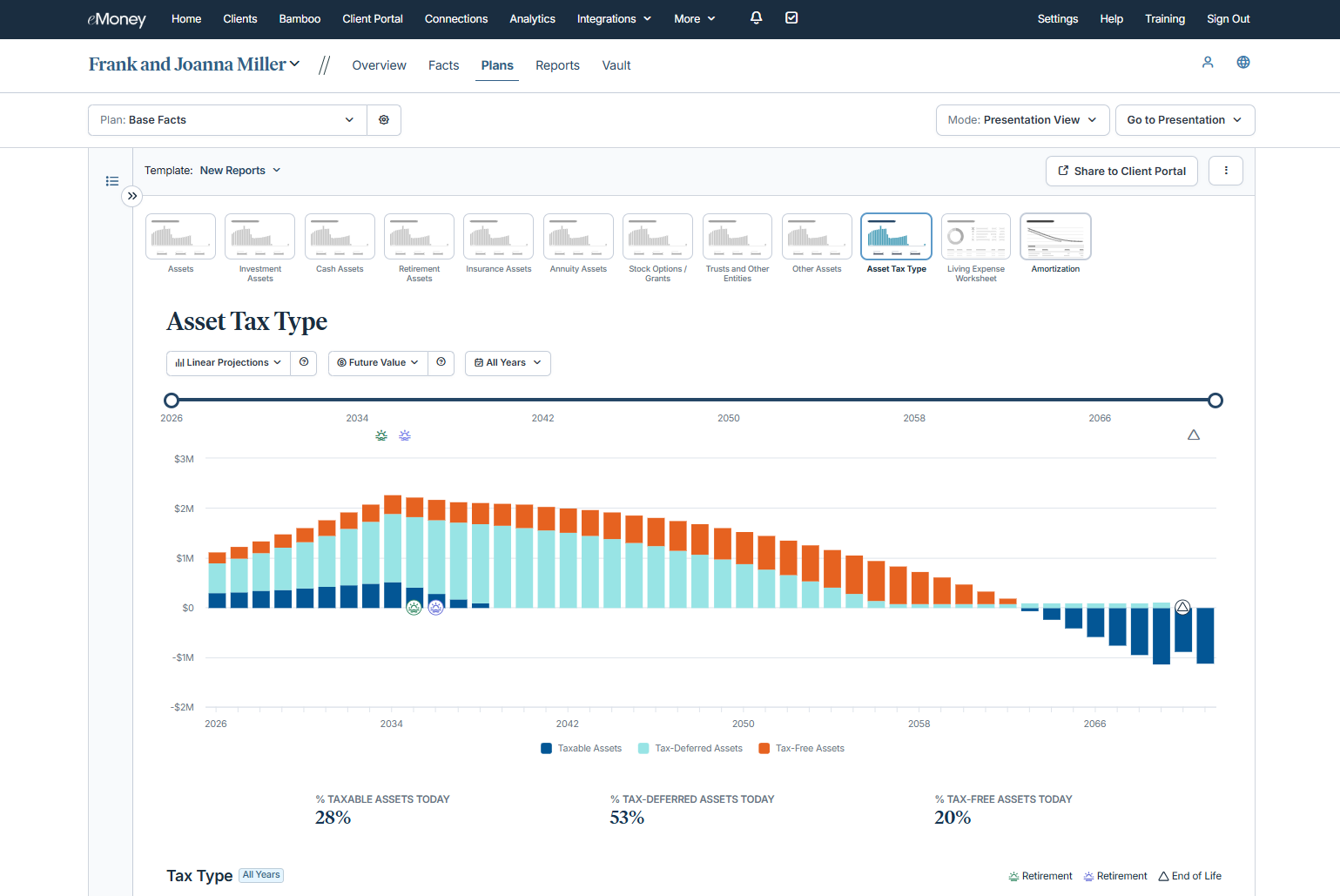
This release continues our broader initiative to bring more planning reports into Decision Center, helping you keep planning discussions, analysis, and recommendations within a centralized planning workspace.
Why This Matters to You
By bringing more frequently used reports directly into Decision Center, you can:
What’s New
Assets Reports, Living Expense Worksheet, and Amortization Report are now available directly within Decision Center.
Assets Reports
Worksheets and Schedules
How It Works
The newly added reports are accessible directly within the interactive Decision Center workflow, allowing you to analyze planning information alongside client scenarios and recommendations. All newly added reports are compatible with Multi-View, Presentation View, and the My Plan page in Client Portal.
Use It When…
You’re presenting recommendations and a client wants to validate assumptions behind a proposed strategy. You need immediate access to asset, expense, and amortization details while keeping the planning discussion moving forward.
Get Started
Navigate to Decision Center and open the available reports within your planning workflow. The Worksheets and Schedules are now available to support analysis, scenario evaluation, and client discussions.
Released September 30
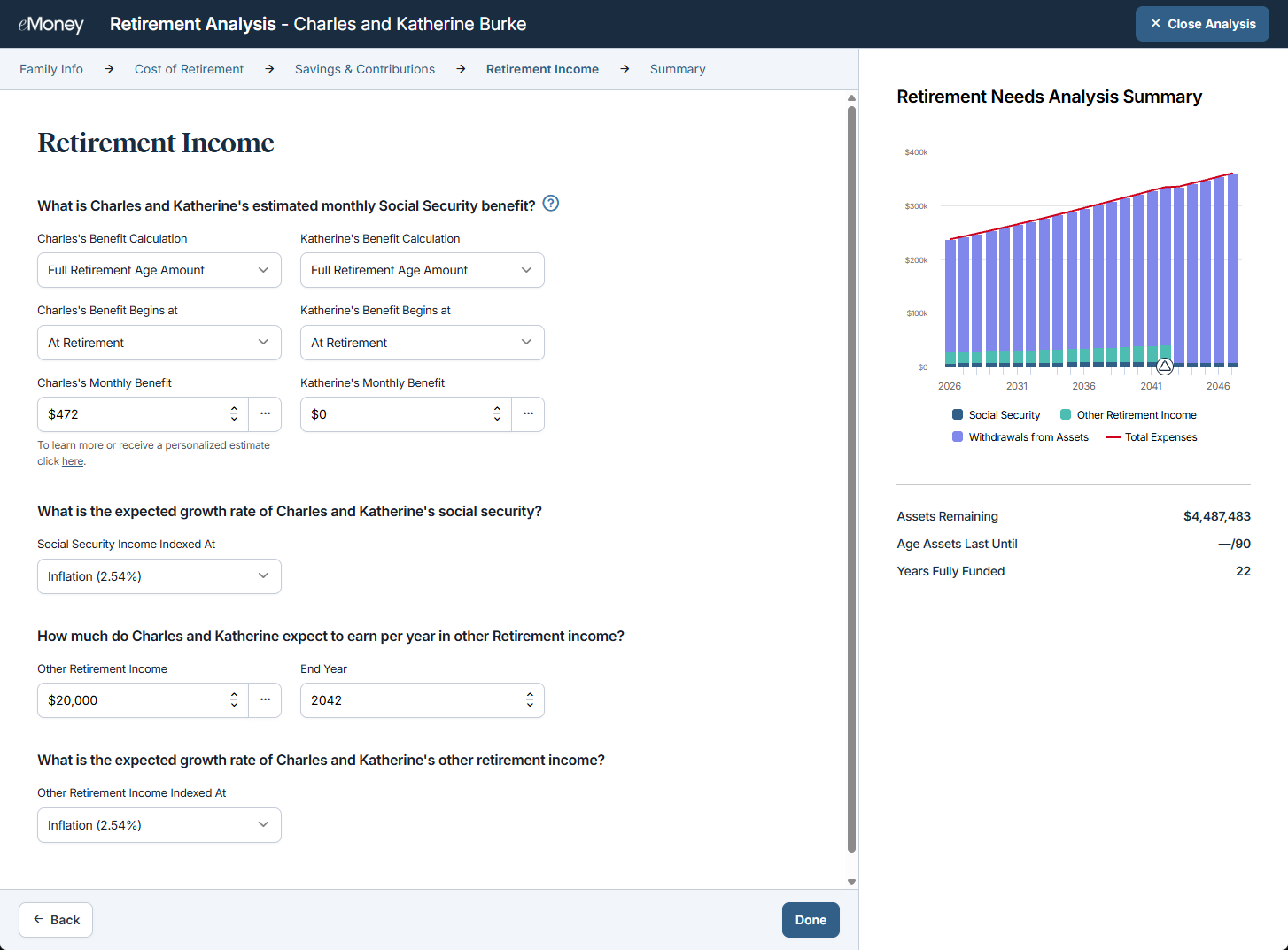
Retirement and Social Security claiming decisions don’t always happen at the same time. You can now define when Social Security benefits begin independently of retirement age in Needs Analysis, providing greater flexibility when modeling retirement income scenarios.
Why This Matters to You
What’s New
You can now model Social Security claiming age independently of retirement age and capture additional Social Security benefit details, including Benefit Calculation, Benefit Begins At, and Monthly Benefit. This provides greater flexibility when modeling retirement income strategies in Needs Analysis.
How It Works
You can now enter Social Security information in relevant Needs Analysis topics, including how a benefit is calculated, when benefits are expected to begin, and the associated monthly benefit amount.
Social Security assumptions can be used across:
The additional fields are available for both clients and spouses and are carried through to applicable printed outputs, helping maintain consistency across planning analyses and reporting.
Use It When…
You’re evaluating retirement income needs for a client who plans to retire before claiming Social Security benefits, and you want projected outcomes to more closely reflect the client’s intended retirement timeline and claiming strategy.
Get Started
Open Needs Analysis and enter enhanced Social Security benefit details for clients and spouses to create more realistic retirement income projections and better align planning assumptions across analyses.
Released September 30
Preparing reports and presentations sometimes requires additional context, greater visibility into planning details, and manual adjustments to create consistent client-facing deliverables. This month’s release introduces four Report and Presentation enhancements that help you create more informative reports, improve planning discussions, and deliver a more consistent presentation experience.
Why This Matters to You
What’s New
Hide Unused Monte Carlo Assumptions
Monte Carlo Assumptions reports can now automatically hide the Custom Growth Rates section when custom growth rates aren’t being used. This helps reduce report clutter and keep client conversations focused on relevant assumptions.
See Return and Risk in Asset Allocation Comparisons
Asset Class Summary reports can now display Rate of Return and Risk (Standard Deviation) directly above allocation comparison charts. Portfolio tradeoffs can be evaluated in context without referencing additional reports.
Show How Often Goals and Expenses Occur
Plan Summary reports can now show the frequency of non-annual goals and expenses. Clients gain clearer visibility into recurring cash flow needs and future planning obligations.
Apply Valuation Settings Across an Entire Presentation
A new presentation-level Valuations setting allows a single present-value or future-value selection to be applied across supported reports. Consistent valuation assumptions can now be maintained throughout a presentation with fewer manual updates.
Released September 30
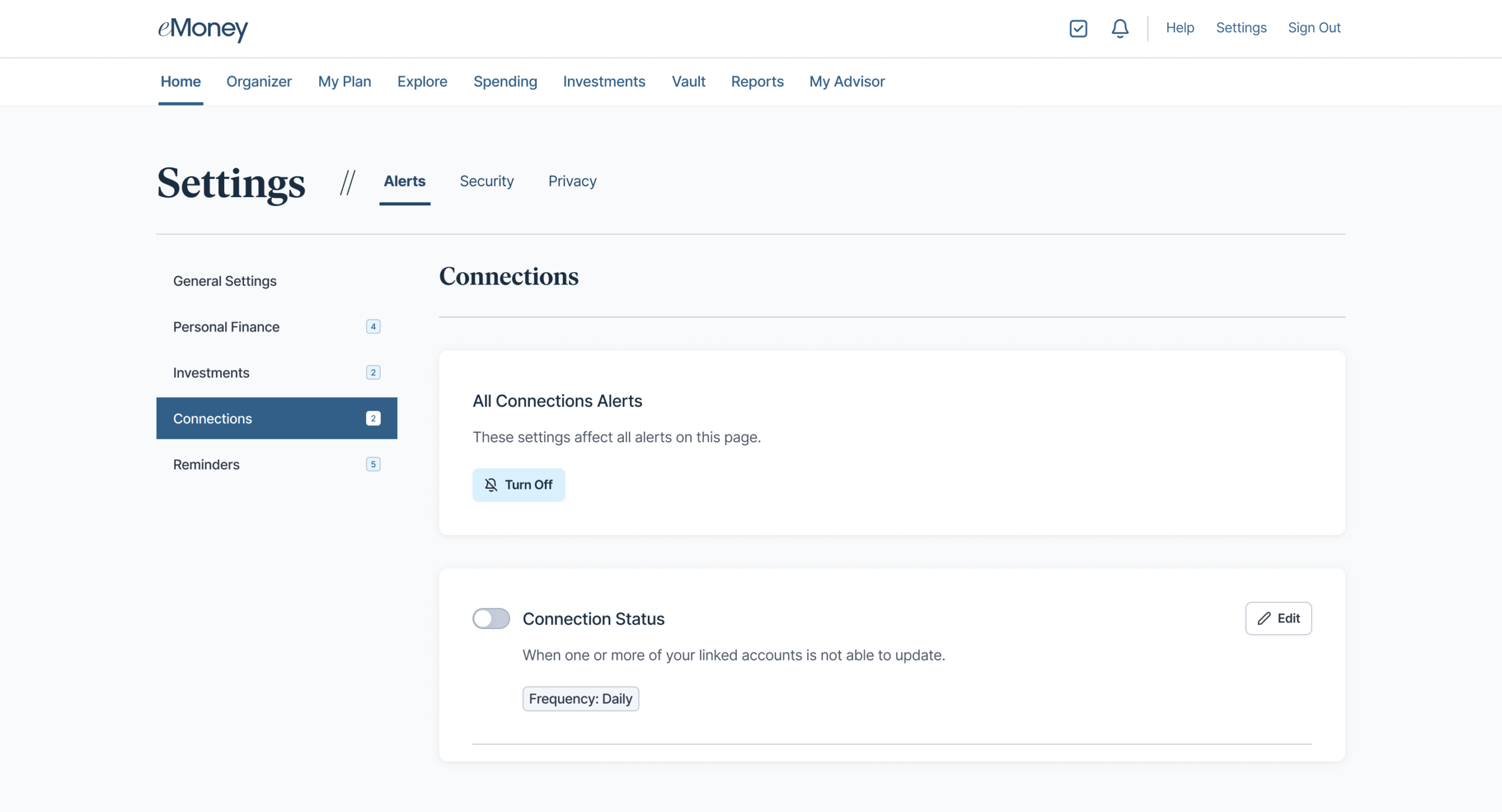
Broken account connections can frustrate clients, lead to incomplete financial data, and often require advisors to spend valuable time coordinating repairs. To help clients stay informed and resolve issues faster, we’re introducing Connection Status Alerts.
This enhancement reinforces eMoney’s continued investment in our award-winning data aggregation experience, helping ensure clients and advisors benefit from timely, accurate financial data.
Why This Matters to You
Accurate, up-to-date client data is essential for delivering meaningful financial advice. When account connections break, clients may not realize action is needed, resulting in stale data, incomplete planning insights, and additional administrative work for advisors.
Connection Status Alerts help close this gap by proactively notifying your clients when their linked accounts require attention, so you can spend less time managing account maintenance.
What’s New
Connection Status Alerts introduce proactive notifications for Client Portal users when connected accounts require attention.
With this release, end users can:
How It Works
Use It When…
Use Connection Status Alerts when you want clients to take a more active role in maintaining their connected accounts and ensuring their financial information remains current.
This feature is especially valuable for:
Get Started
Connection Status Alerts is now available for end users of the Client Portal.
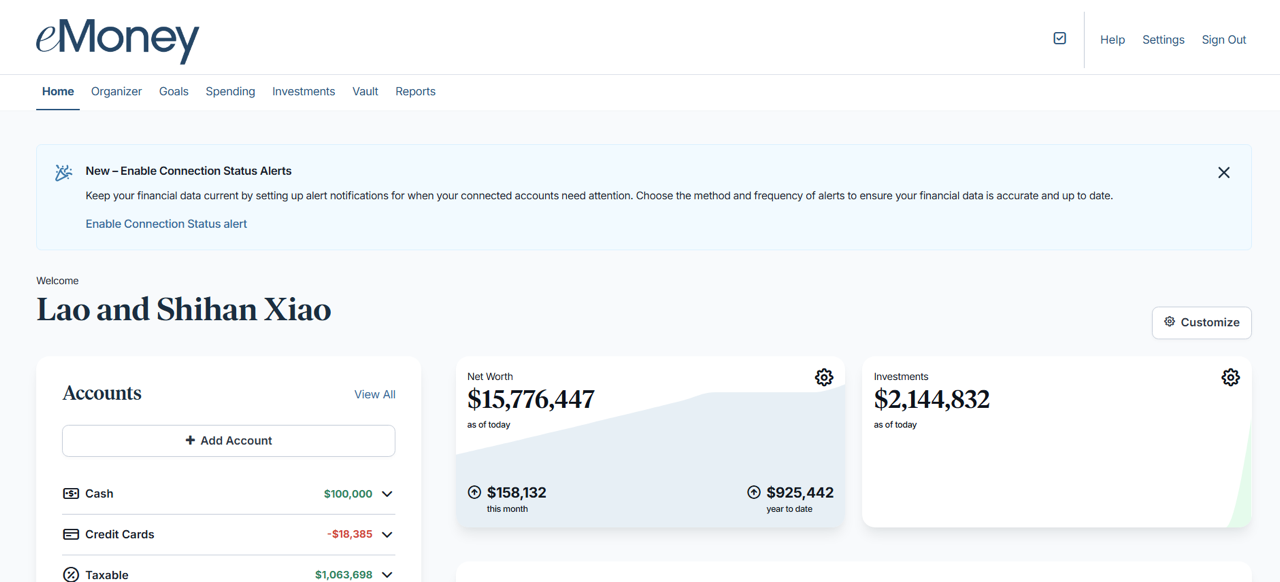
Please note that clients using the Client Portal will receive an in-app notification introducing the feature and prompting them to activate alerts, where they can also set preferred delivery methods, including email and mobile app notifications. See visual below:
Released September 30
Beginning September 30, authentication emails, including password reset and account lockout, will come from notification@emoneyadvisor.com instead of an Okta address. Content and functionality are not changing, and no action is required. This update will improve the login experience for you and your clients by making it easier to recognize authentication emails as trusted eMoney communications.
Coming Soon
Highly Requested Feature
Beginning October 28, users who sign in to eMoney directly will have the option to use an authenticator app as their second factor for multi-factor authentication (MFA).
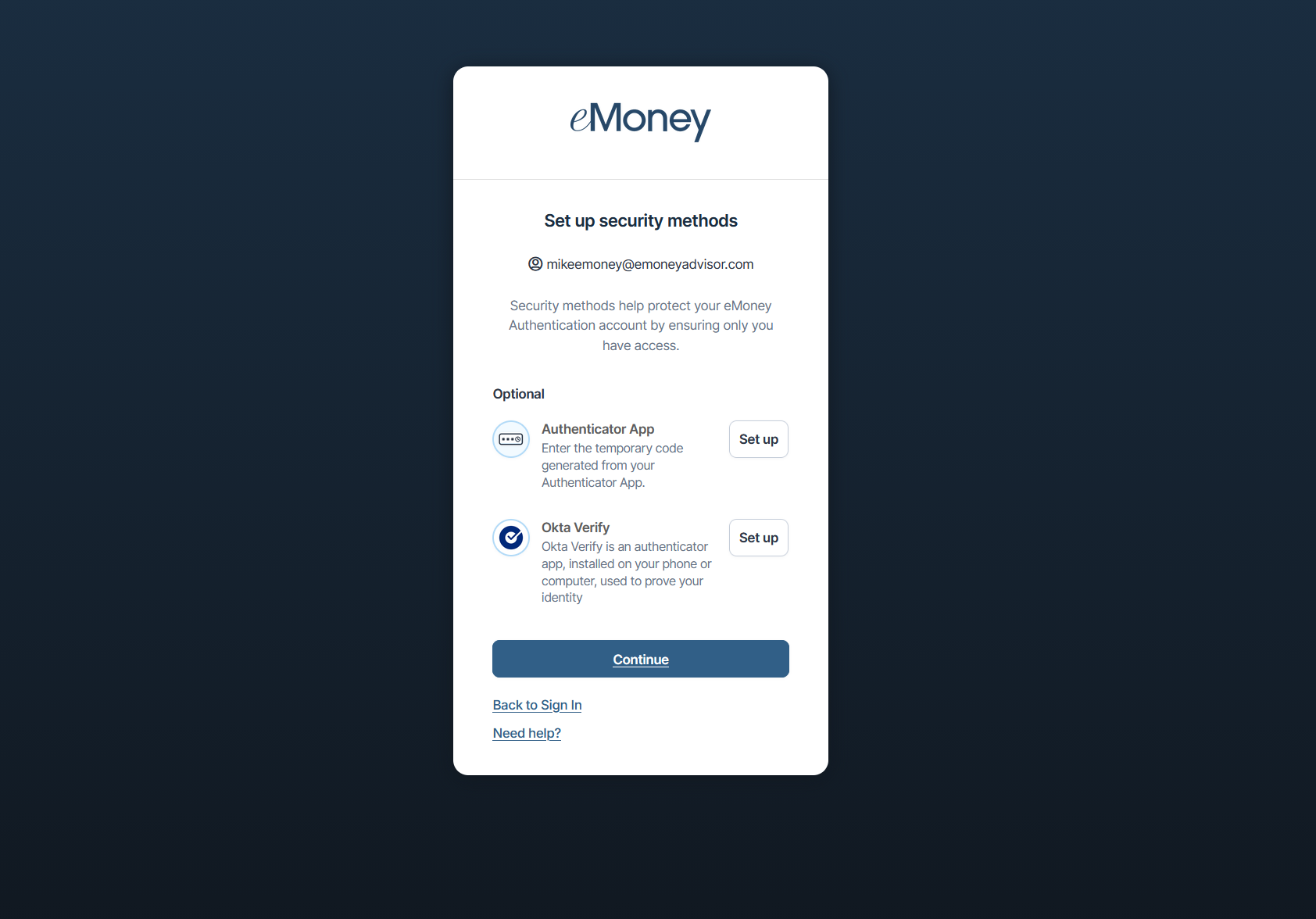
In addition to receiving verification codes via SMS, users can choose from popular authenticator apps like Okta Verify, Google Authenticator, Microsoft Authenticator, or supported password manager applications.
This enhancement gives you and your clients greater flexibility in how you verify your identity when logging in. Authenticator apps can provide a more convenient experience in situations where text messages are unavailable, such as when traveling or experiencing limited cellular service, while also supporting stronger security practices.
No action is required from existing users. Those who prefer to continue using SMS verification can do so, while users interested in authenticator apps can set them up during account creation or through their eMoney account settings after release.
Note: Advisors will have the ability to reset authentication options on behalf of your client at any time, but you will not have the ability to choose which clients can use them.
Coming Soon
To support our updated data retention policy and data management practices, transaction history older than five years will be removed by the end of October. This change helps align how transaction data is stored, but if your client relies on longer-term historical records, they may want to retain a copy for their own records.
If access to transaction history beyond the five-year retention period is needed, records can be exported before the end of October, 2026. We recommend letting your clients know about this update in an upcoming meeting, as taking action now ensures they can reference older transaction data when needed, even after it is no longer available in the platform. Financial institutions remain the source of record for transaction history and may provide access to historical records outside of eMoney.
Coming Soon
Delivering intuitive, modern experiences requires continuous focus on the tools and workflows that drive the most value. Maintaining multiple versions of the same functionality can create unnecessary complexity and make it harder to navigate and support the platform.
As part of our ongoing investment in simplifying and modernizing both advisor and client experiences, select legacy workflows will be retired in favor of the enhanced experiences introduced over the past two years.
To help you prepare for these upcoming experience changes, join one of our live training sessions:
Learn more about what you can expect in this on-demand webinar session!
Learn more about what you can expect in this on-demand webinar session!
Why This Matters to You
Planning Experience Updates
Over the past two years, enhanced versions of Needs Analysis, Goal Planning (Plan Comparison), and Foundational Planning have been introduced, allowing users to toggle between classic and updated workflows during the transition.
What’s Changing
Effective December 2, 2026
What Remains
Actions to Take
Client Experience Updates
As part of continued investment in the client experience, select legacy workflows will also be retired while newer, more modern experiences are established as the standard.
Client Onboarding
A redesigned onboarding experience is being established as the default client onboarding workflow.
What’s Changing
Why This Matters
Lead Capture
Lead Capture has helped advisors connect with prospective clients and support early financial conversations. As we continue investing in a more modern, end-to-end client experience, we are evolving how prospect engagement is delivered.
What’s Changing
What to Expect
We are introducing a more advanced approach to prospecting that helps advisors attract, qualify, and engage the right clients more effectively.
This new experience will deliver:
Why We’re Making This Change
The current Lead Capture tool has seen limited adoption and no longer reflects advisor needs today. This update creates a stronger, more scalable foundation to support advisor growth.
How to Prepare
Putting It All Together
These updates represent an important step in simplifying the platform and focusing innovation on the experiences advisors and clients use most. By consolidating around modern workflows, we can continue delivering more intuitive, consistent, and scalable planning and client engagement tools.
Released August 26
Gathering the information needed to begin planning often requires multiple follow-ups with clients, delaying onboarding and extending the time before meaningful planning conversations can begin.
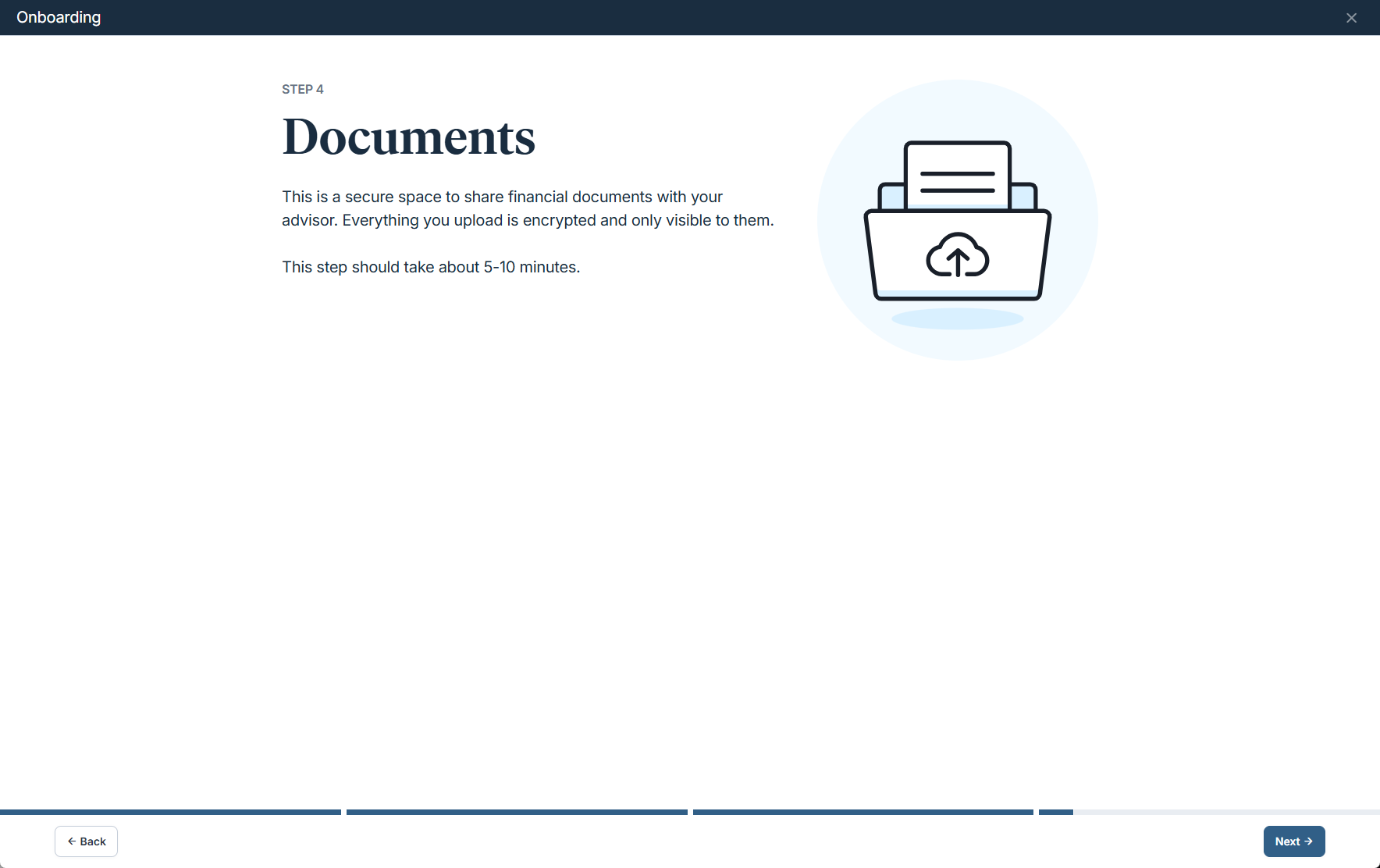
Document Upload makes it easier for clients to provide important financial documents as part of the onboarding experience. Whether you’re onboarding clients through Standalone Onboarding or inviting them to the Client Portal only, they can now securely upload supporting documents directly during the process. Documents are automatically stored in the Vault, helping you start with the information needed while reducing administrative back-and-forth.
Why This Matters to You
What’s New
Clients can now upload supporting documents directly through Standalone Onboarding and Client Portal Onboarding. Uploaded files are automatically stored in the client’s Vault, making it easy to access important information sooner by enabling clients to upload supporting documents directly during their onboarding, including items such as:
How It Works
Users can upload documents by selecting Browse Files or using drag-and-drop. Mobile users also have the option to upload documents using their device’s camera. All uploaded documents appear in the Documents section and are visible on the Summary page for easy review.
Use It When…
You’re onboarding a new client and want to collect supporting financial documents upfront, reducing follow-up requests and ensuring you have the information needed to prepare for your first planning discussion.
Get Started
Simply invite clients to complete onboarding and upload their documents as part of the process to streamline preparation for your next client meeting.
Released August 26
Retirement planning often extends beyond investment and spending decisions. For many clients, where they choose to live in retirement can have a meaningful impact on taxes, cash flow, and long-term plan success.
As CoPlanner continues to evolve, we’re expanding the range of planning strategies it can evaluate to support a wider range of client scenarios and deliver more personalized recommendations. This month, we’re introducing Move States, a new technique that helps you illustrate the impact relocating to a different state has on a client’s retirement plan.
Why This Matters to You
State and local taxes can play a major role in retirement outcomes. Evaluating a potential move helps clients understand how lower tax obligations may reduce expenses, preserve assets, and support long-term financial goals.
What’s New
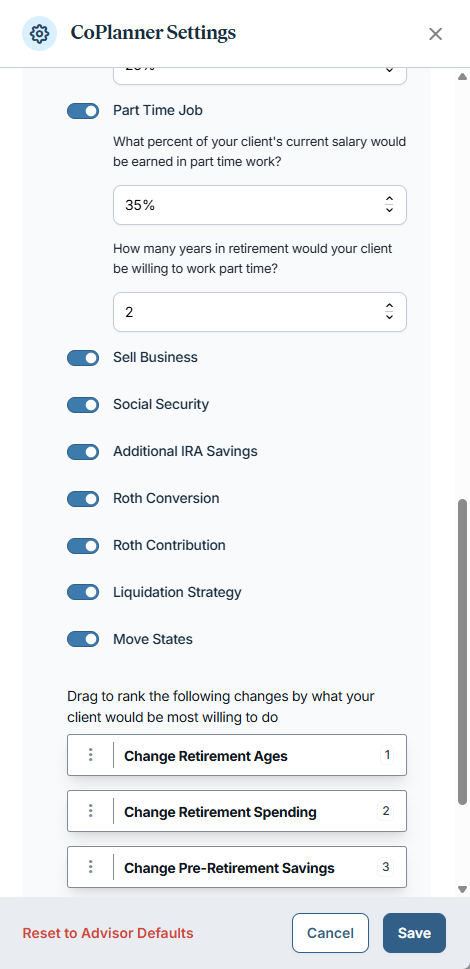
Move States is a new CoPlanner technique that models the impact of relocating to a different state during retirement.
The technique evaluates how changes in state and local income taxes can affect retirement cash flow, asset preservation, and overall plan success. You can explore scenarios ranging from moving to a specific state to a generic tax-free state and compare the potential long-term impact on a client’s financial outlook.
The technique is available in both Advanced Planning and Foundational Planning.
How It Works
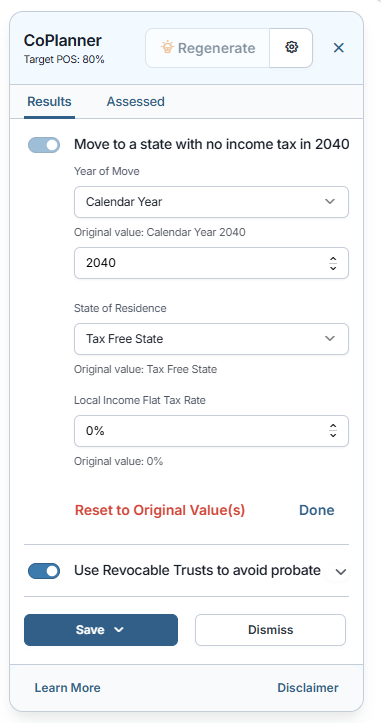
When the Move States technique is applied, CoPlanner automatically creates a Future State Tax Schedule entry that updates the client’s state income tax assumptions beginning in a future year.
By default, the move is modeled for retirement plus five years. If the client is already more than five years into retirement, the change is modeled beginning in the current year.
The technique assumes:
You can customize:
The technique is available when the client is not already modeled in a tax-free state, and no future state tax changes currently exist in the plan.
Like all CoPlanner techniques, Move Statescan be enabled or disabled throughCoPlanner Settings.
Use It When…
A client is considering relocating during retirement and wants to understand how moving to another state could affect taxes, retirement income, and the long-term sustainability of their plan.
Get Started
Enable Move States in CoPlanner and evaluate how different state tax environments may impact your clients’ retirement outcomes and plan success.
Released August 26
Highly Requested Feature
Estate planning strategies often involve assets held within trusts, but accurately modeling those transactions has traditionally required workarounds or manual assumptions.
Buy/Sell Transactions now support trust-owned assets, giving you a more complete way to model estate planning recommendations.
Why This Matters to You
What’s New
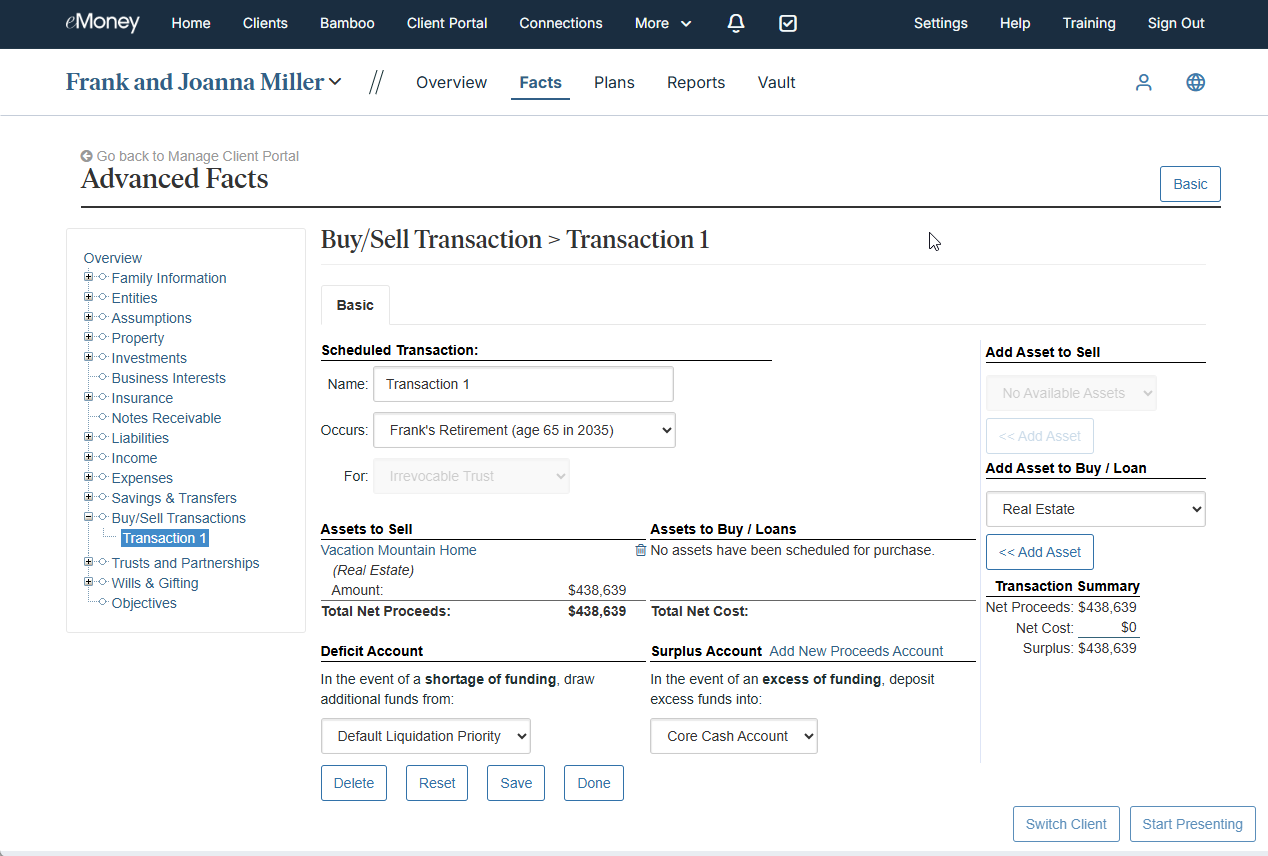
You can now include trust-owned assets in buy/sell transactions and associate those transactions with a specific trust.
The enhancement supports trust-owned proceeds and deficit accounts while automatically applying the appropriate tax treatment based on the trust structure. Reporting has also been updated to provide greater visibility into trust-related transactions.
How It Works
When creating a buy/sell transaction, you can:
The system automatically:
Use It When…
You’re evaluating estate planning strategies that involve buying, selling, or repositioning assets held within a trust and need a more accurate representation of the financial and tax implications.
Get Started
Create a buy/sell transaction involving a trust-owned asset and explore more sophisticated estate planning scenarios directly within your client plans.
.
Released August 26
Financial planning and estate planning are deeply connected, yet advisors often need to manage client information across multiple systems. Moving data between platforms can create extra administrative work, increase the risk of inconsistencies, and slow down planning conversations.
We are enhancing the Wealth.com integration so you can now launch Wealth.com directly from eMoney using single sign-on (SSO). Combined with the existing client data integration between eMoney and Wealth.com, you can move more efficiently between the two platforms.
Why This Matters to You
What’s New
The Wealth.com integration now includes:
If you’re using Wealth.com, you can now sync client information, assets, plan assumptions, and other key planning data, making it easier to begin and manage estate planning activities within Wealth.com.
How It Works
After connecting eMoney and Wealth.com accounts, you can launch Wealth.com directly from eMoney using single sign-on.
The integration uses OAuth-based connectivity, allowing Wealth.com to securely connect to eMoney through APIs and synchronize key planning data between platforms.
This helps you:
Use It When…
You use Wealth.com and eMoney to streamline workflows, reduce administrative effort, and keep financial and estate planning data aligned across platforms.
Get Started
Visit the Integrations page to access the Wealth.com tile and connect your Wealth.com account to begin synchronizing client data and launching Wealth.com directly from eMoney.
Released August 18
Keeping organizational client records up to date sometimes requires changes that can’t be made directly in the application, creating unnecessary support requests and administrative delays.
Now you can update email addresses for organizational clients directly within the platform. Previously, these changes required a support request and manual processing. This enhancement simplifies client record maintenance, reduces effort, and provides a self-service experience.
Released August 26
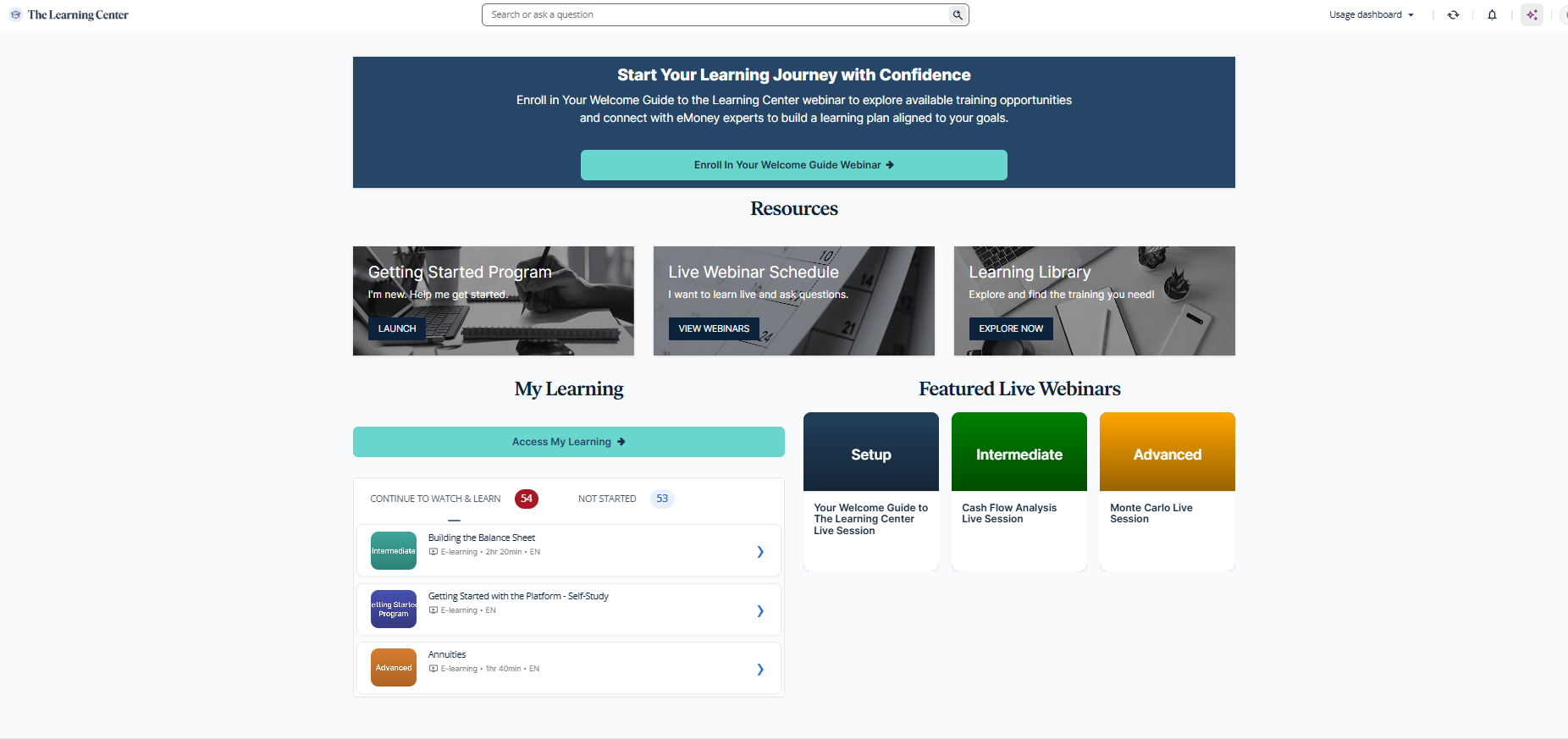
Whether you’re just learning eMoney, exploring new capabilities, or looking to gain more confidence, we have the right training resources available. You need quick access to relevant learning content, upcoming educational opportunities, and guidance on where to learn next.
The redesigned Learning Center homepage creates a centralized learning experience that helps you discover training resources more efficiently. With personalized recommendations, easier navigation, and greater visibility into live learning opportunities, it’s now easier to find the content most relevant to your business needs.
Why It Matters to You
What’s New
The Training Center now features a redesigned homepage experience that provides:
Your existing learning history and training progress remain unchanged.
How It Works
When you select Training from your navigation bar, you’ll be directed to the new Learning Center homepage. From there, you can quickly access learning content, browse upcoming webinars, explore recommended training opportunities, and continue your learning journey through resources tailored to your needs.
Use It When…
You’re looking for training resources, onboarding guidance, or opportunities to expand your knowledge of eMoney capabilities and want a faster way to discover relevant content.
Get Started
Select Training to explore the new homepage experience and discover learning resources personalized to your needs and goals.
Released July 29
Creating a financial plan is only part of the advisor journey. It’s just as important to communicate recommendations in a way clients can understand and act on.
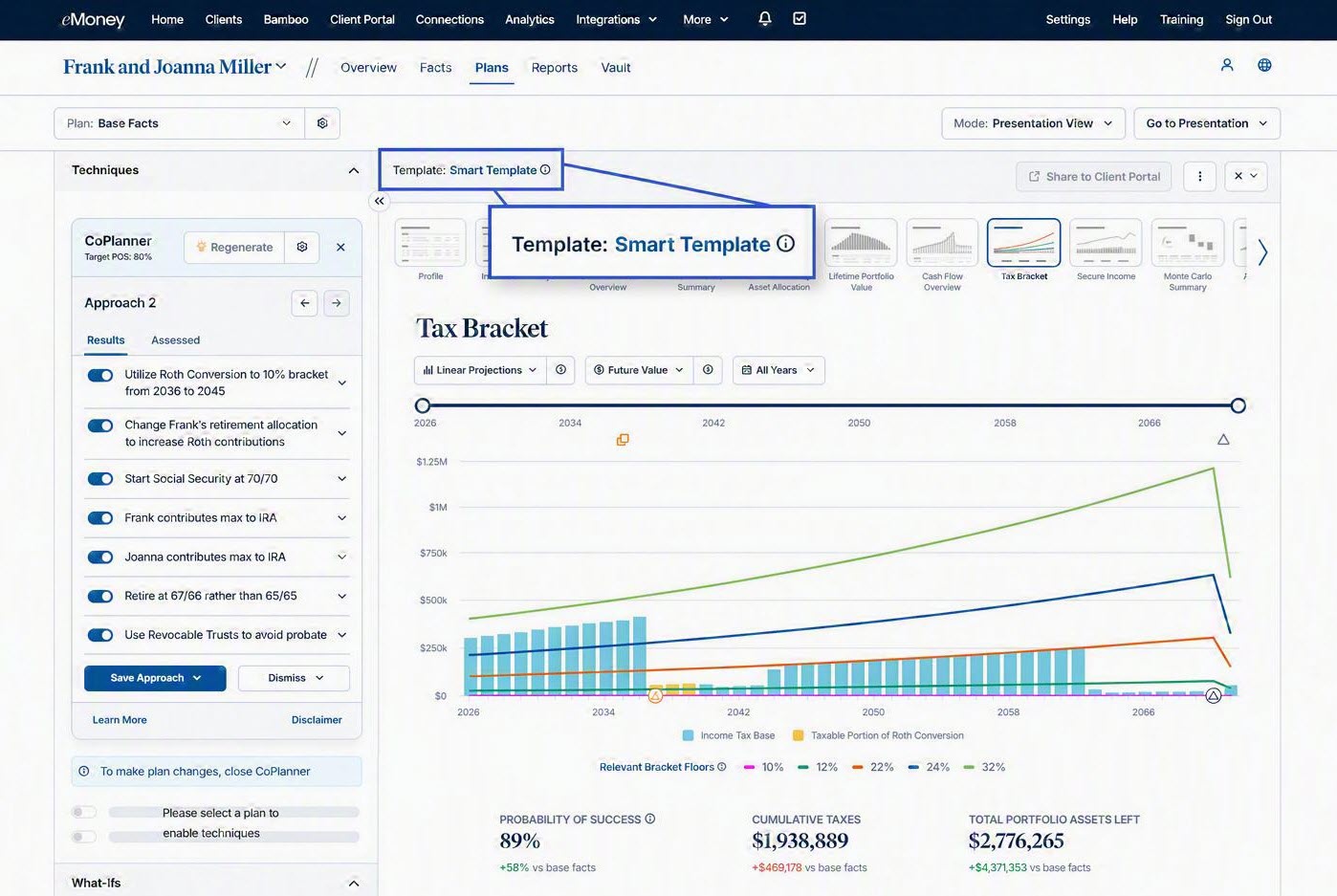
Smart Presentation Templates in Decision Center automatically generate a curated set of reports based on the strategies and techniques included in the plan. Instead of manually building presentations, you’ll receive a ready-to-use set of reports designed to support your recommendations and help turn complex analysis into a clear, focused client conversation. This is another step toward our vision of helping advisors move seamlessly from plan creation to plan delivery.
Why It Matters to You
What’s New
Smart Presentation Templates automatically generate a curated set of reports based on the strategies and techniques included in a CoPlanner plan. The selected reports are designed to help advisors communicate plan recommendations and changes in context, creating a more focused and effective client presentation.
How It Works
After generating a plan with CoPlanner, Decision Center automatically assembles a presentation with relevant reports tied to the recommendations within the plan. Rather than manually searching for and selecting reports, you’ll have a presentation ready to support your discussion with the client.
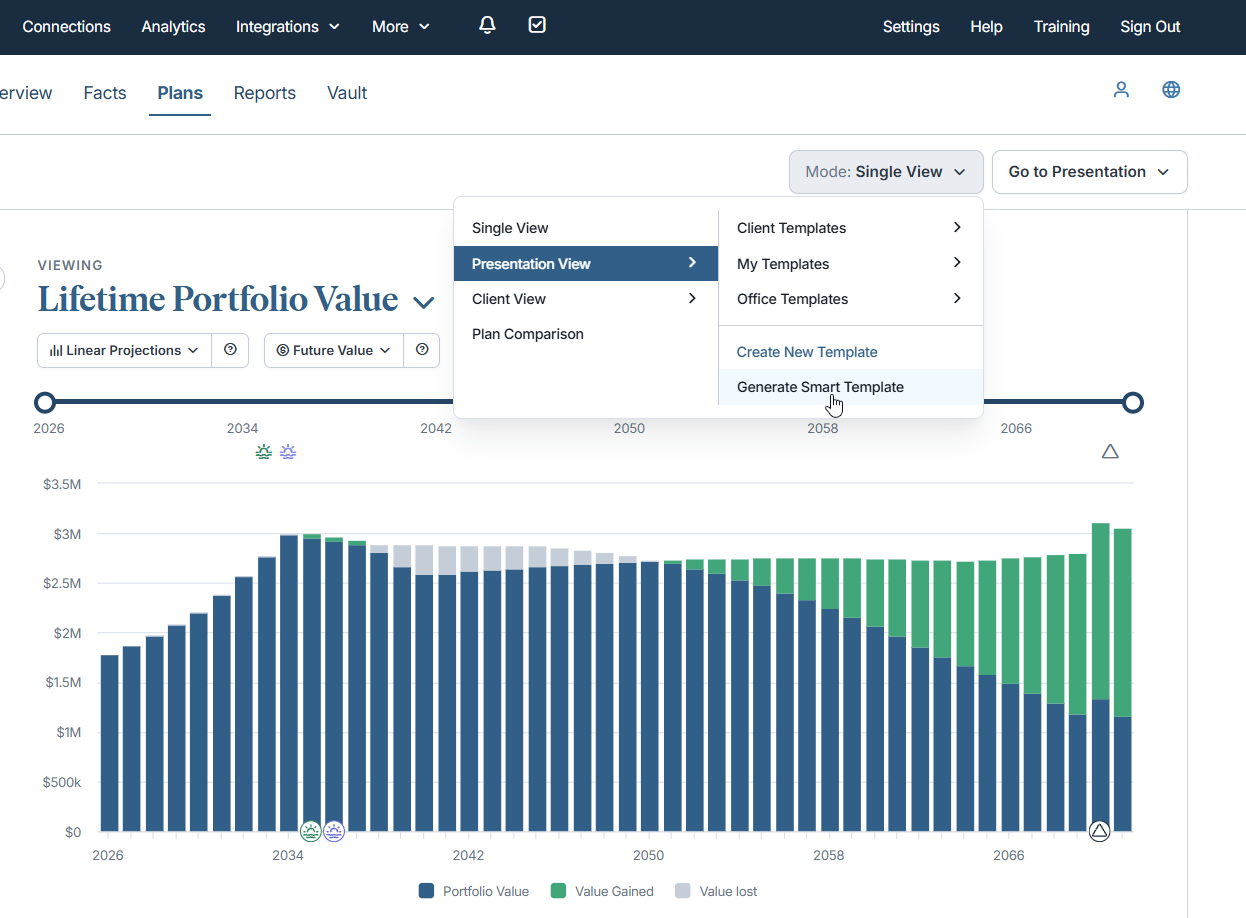
You can also generate a Smart Template for manually created plans by selecting Generate Smart Template through the Mode drop-down menu.
Use It When…
You’re preparing for a client meeting and want to quickly turn planning recommendations into a clear story that helps clients understand both the strategy and its impact.
Get Started
Generate a CoPlanner plan and review your automatically created Smart Presentation Template before your next client meeting.
Released July 29
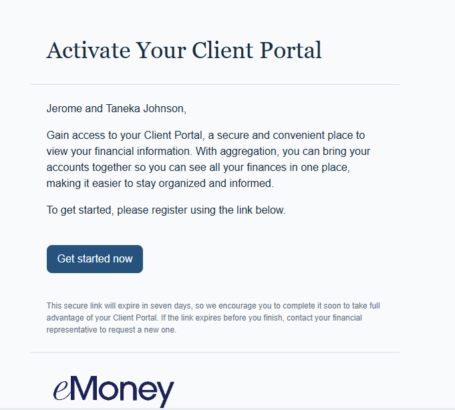
Your clients’ first interactions with the Client Portal often happen through email. Updated onboarding and notification emails bring a more modern look and feel to these interactions, with improved readability, firm branding support, and a more consistent client experience.
Why It Matters to You
What’s New
We’re replacing legacy Client Portal email templates with updated versions, including refreshed onboarding and notification emails, enhanced branding support, and improved readability.
How It Works
Updated email templates deliver a more modern, polished experience for clients. For Premium Client Portal users, emails will also automatically reflect Client Portal branding and color themes, helping create a more consistent experience across client communications.
Use It When…
A client receives a portal invitation, completes registration, or receives a Client Portal notification.
Get Started
No action is required. Updated email templates will automatically be used for Client Portal invitations, registrations, and notifications.
Released July 29
The Premium Client Portal mobile app helps clients stay connected to their financial information anytime and anywhere. To make it easier for clients to discover and engage with the mobile experience, we’re introducing targeted mobile app promotion opportunities within the Premium Client Portal.
These enhancements are designed to help increase awareness of the mobile app and encourage adoption among existing Premium Client Portal users.
Why It Matters to You
What’s New
Premium Client Portal now displays targeted mobile app promotion opportunities that help clients discover, install, and engage with the mobile app.
How It Works
Clients with access to Premium Client Portal will see prompts and promotion opportunities within the portal experience that encourage them to download and activate the mobile app, helping them stay connected to their financial information across web and mobile channels.
Get Started
No action is required. Clients with access to Premium Client Portal will automatically see opportunities to discover and download the mobile app. This enhancement is available for advisors with Premier or the Premium Client Portal add-on.
Released July 29
Understanding who can access financial information is an important part of the Client Portal experience. We’ve updated Privacy Settings to provide greater clarity around data-sharing permissions and make it easier for clients to understand who has access to their information.
Why It Matters to You
What’s New
The Privacy Settings experience has been redesigned with two clearly defined sections:
Clients can also more easily dismiss the notification prompting them to grant or deny access to their data.
How It Works
Privacy Settings now organizes access permissions into separate sections, making it easier for clients to see who can access their financial information and what level of access has been granted.
Use It When…
A client wants to understand who can access their financial information or review data-sharing permissions within the Client Portal.
Get Started
Visit Privacy Settings in Client Portal to review the updated experience.
Released July 29
For many firms, the day-to-day management of the Client Portal happens behind the scenes. While advisors use the portal to strengthen client relationships and support prospecting conversations, planners and support staff are often responsible for maintaining settings and ensuring the experience runs smoothly.
Starting today, support users can access Client Portal Settings directly, making it easier for the teams managing the portal to support advisors and clients efficiently.
Why It Matters to You
What’s New
Support users now have access to Client Portal Settings and can manage portal configuration without requiring assistance from their advisor.
How It Works
Users assigned the support role automatically have access to Client Portal Settings. No additional setup or configuration is required.
Use It When…
A client needs a portal setting updated, and your support team wants to make the change directly without involving another team member.
Get Started
Log in as a Support user and navigate to Client Portal Settings to begin managing portal configuration.
Released July 29
We’ve updated the Organizer and Future Goals pages in the Client Portal to align with the current Client Portal design experience.
Why It Matters to You
What’s New
The Organizer and Future Goals pages have been updated with refreshed layouts and styling that align with the rest of the Client Portal.
How It Works
Clients will automatically see the updated experience when accessing the Organizer and Future Goals pages.
Use It When…
You’re guiding clients through the Organizer or Future Goals pages within the Client Portal.
Get Started
No action is required. The updated experience is available automatically.
Released July 29
Updates to the Vault introduce a more modern, consistent look and feel across key areas of the experience, aligning with broader platform design updates.
Why This Matters to You
What’s New
The Advisor Vault experience has been visually updated, including refreshed fonts, icons, and layout.
How It Works
Use This When…
Get Started
Open the Advisor Vault to experience the updated interface and manage client documents in a more consistent environment.
Released July 29
More accurate tax assumptions help produce more reliable financial projections. A new Tax Basis field for Taxable and Cash Accounts in Needs Analysis helps ensure existing unrealized capital gains are properly incorporated into future tax calculations. This update applies to the Retirement, Life Insurance Gap Analysis, and Long-Term Care modules.