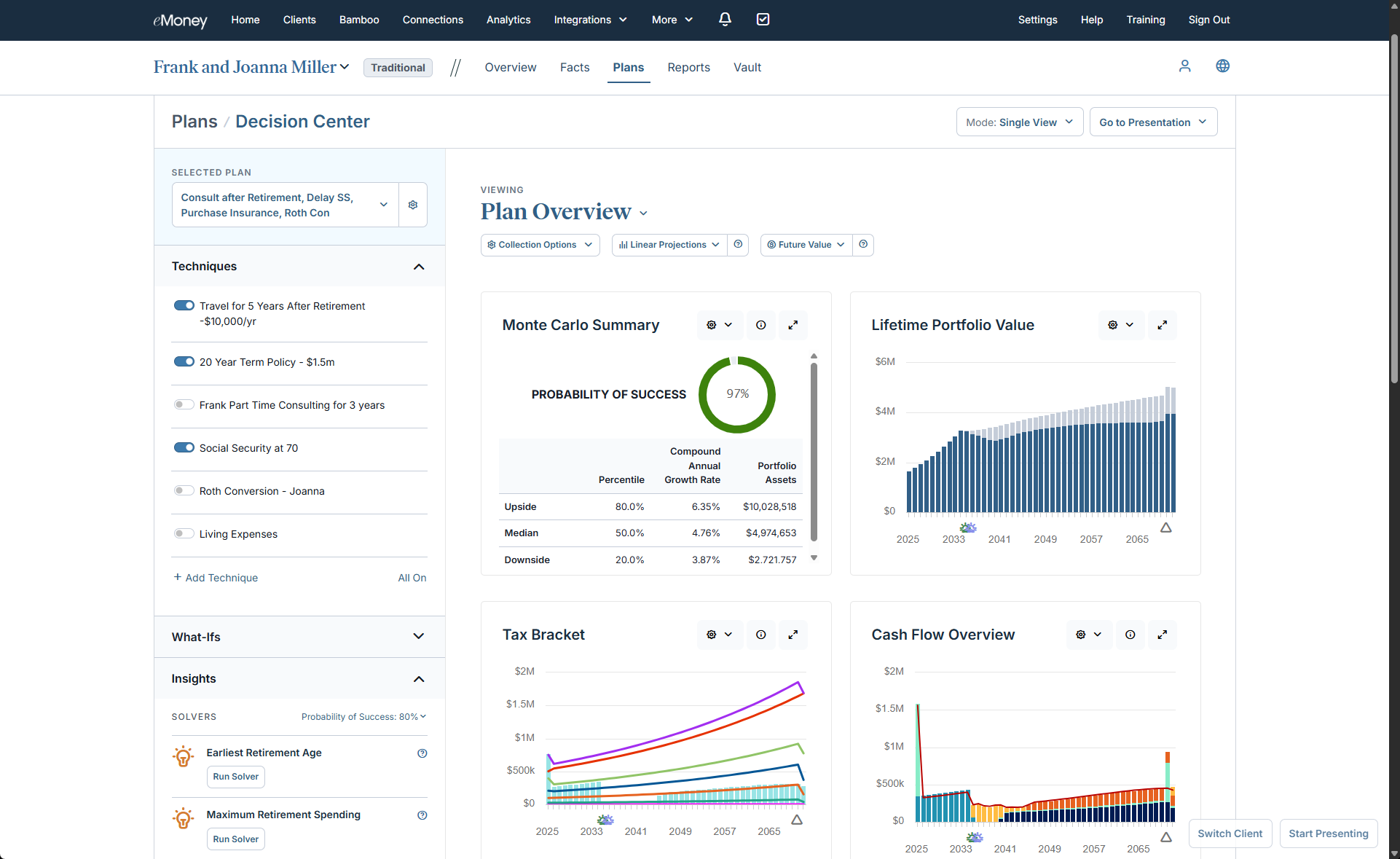
Planning conversations often hinge on the moments when a client asks, “What happens if we change X?” Those moments can be powerful—if you can show the impact quickly and clearly. But when you’re jumping between reports or searching for the right chart, the energy shifts. Clients lose the thread. Decisions take longer. And the conversation becomes more about navigating the tool than uncovering insight. That’s where Multi-View becomes a quiet superpower. It keeps your most important insights on one screen so you can stay focused on the conversation—not the clicks.
The Power of Multi‑View
Multi‑View helps you move through planning conversations faster and with more clarity.
See the full story at once. Build a personalized dashboard around the metrics that matter most to this client, so you’re not jumping between reports mid‑meeting.
Move faster from “what‑if” to “aha.” As you apply different techniques, your selected reports update together, making trade-offs easier for clients to understand.
Stay focused on the conversation. Start with the right views in place, drill into details only when helpful, and return without losing your flow.
Build once, reuse often. Save your most useful Multi‑Views and reuse them, instead of rebuilding from scratch.
Best Practice: Use Multi‑View During Plan Exploration
Multi‑View is most effective during the planning and analysis stage, while you’re actively evaluating options with the client.
Here’s a simple conversation structure to try:
Frame the question. “If we do X, this changes, and here’s why.”
Test one idea at a time. Toggle one technique to isolate its impact. Add a second to show how strategies work together.
Go deeper without derailing. Open a full report when detail helps, then return to Multi-View and keep moving.
Quick-start Multi-View Collections
These collections give you an immediate structure for common conversations:
Big Picture: Lifetime Portfolio Value, Balance Sheet, Longevity Risk, Monte Carlo Summary, Asset Spread
Tax Planning: Tax Brackets, Total Taxes, Lifetime Portfolio Value, Monte Carlo Summary
Estate Planning: Net Worth, Compare Distributions, Survivor Income, Estate Overview, Compare Survivor Income
Learn How to Use Multi-View in Under 10 Minutes
Move faster through planning conversations while keeping clients focused on what matters with Multi-View. In under 10 minutes, you can learn the essentials and start using it in your next meeting.
Get Started with Decision Center Training
You’ll learn how to:
Create and name a new Multi‑View and add reports
Resize, move, and configure reports
Use projection mode and Monte Carlo settings
Drill into full report details and return to Multi‑View
Save, duplicate, and switch between Multi‑View collections
Together, they help you move from exploration to clear next steps in the same meeting.
Put Multi‑View to Work in Your Next Planning Conversation
Whether you’re trying Multi‑View for the first time or rolling it out across your firm, we recommend spending a few minutes with these resources to help you move fast:
Open the Decision Center → Create and manage your personalized Multi-View collections
Visit the Knowledge Base → Get a quick, guided Multi‑View walkthrough (≈10 minutes)