

This month’s updates help you create more personalized planning experiences, evaluate strategies more effectively, and access training resources more intuitively. With Default Advisor Settings in Decision Center and Customized Data Gathering for Premium Client Portal leading the way, expanded Income Tax Reports in Decision Center, and a refreshed topic-based Learning Library, these enhancements help streamline key planning workflows and support more informed client conversations.
LIVE WEBINAR
November 17 at 2:00 p.m. ET
Register for our live Fall Product webinar on November 17 at 2:00 p.m. ET for a recap of our 2026 product updates and a look into the latest Client Portal enhancements, designed to help you better engage prospects, streamline onboarding, and support more of the client journey in one place.
October Updates
Remind me of all recent updates from last quarter!
Released October 28
Highly Requested Feature
Many advisors have a consistent set of reports and planning assumptions they use to evaluate client opportunities and guide conversations. With the new Advisor Default Settings, Decision Center automatically opens with your preferred reports and settings, creating a more personalized and consistent experience every time.
Why This Matters to You
What’s New
You can now set default preferences for Decision Center at the advisor level. Your selected report, Time Value Mode, and Projection Mode will automatically load each time Decision Center opens.
How It Works
Use It When…
You’re reviewing planning opportunities throughout the day and consistently rely on the same analysis views. Whether you’re preparing for a client meeting or evaluating recommendations, having your preferred reports and settings ready from the start helps create a more consistent planning workflow.
Get Started
Review the guide for a quick look at the new default settings experience.
Released October 28
Highly Requested Feature
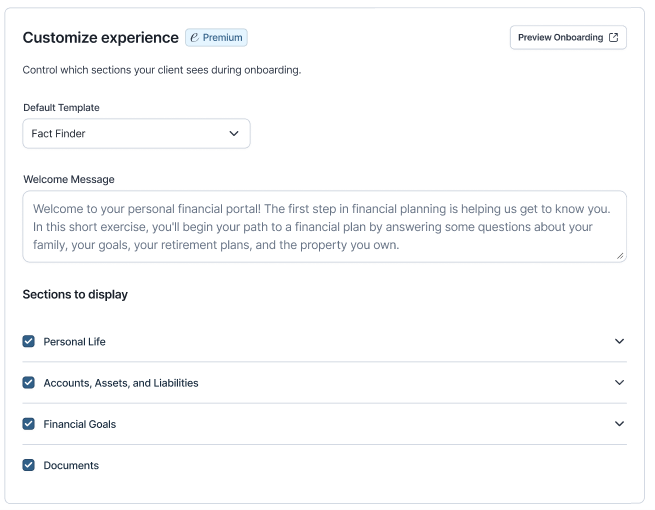
Gathering client information is a critical part of the planning process, but it’s often time-consuming and frustrating for advisors and clients. Customized Data Gathering, now available in the Premium Client Portal, helps you tailor onboarding to each client or prospect, creating a more streamlined experience, improving data quality, and reducing administrative work.
Note: Premium Client Portal is available by default in the Premier package, or as an add-on. Learn more about Premium Client Portal. Not sure which package you have? Give us a call! 1-888-362-4612.
Why This Matters to You
What’s New
Customized Data Gathering gives you greater control over the onboarding experience and allows you to:
How It Works
Customize onboarding and information gathering at three levels: Advisor, Client, and Invitation.
Use It When…
Get Started
Review the guide for a quick look at the new onboarding experience.
Released October 28
Many clients want to provide financial support to children and grandchildren during their lifetime while continuing to meet their long-term financial objectives. Understanding how much they may be able to gift without compromising long-term goals can help advisors guide more meaningful conversations about family gifting goals.
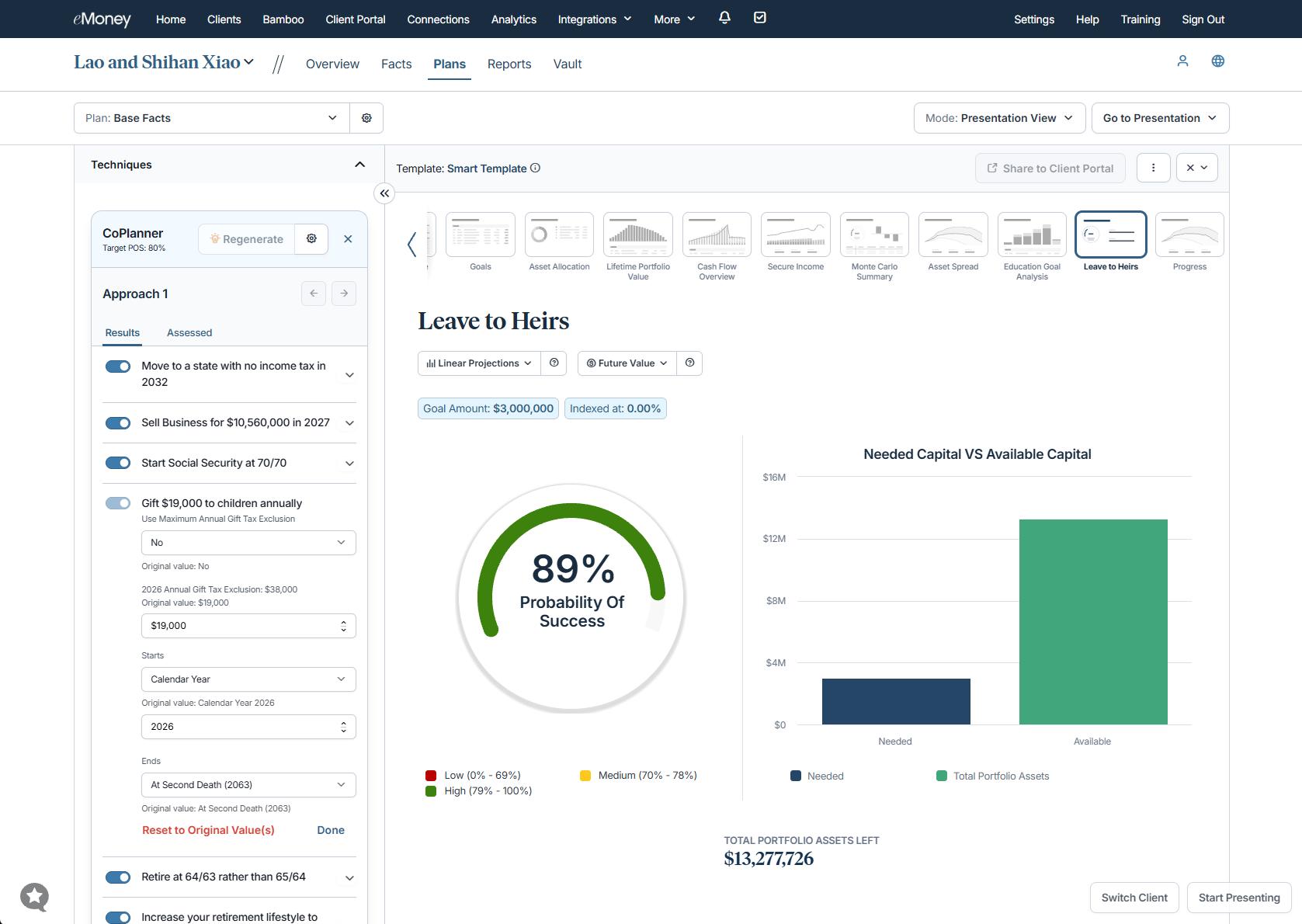
Now with the new Annual Family Gifting technique in CoPlanner, evaluate whether a client can make annual gifts to children and grandchildren while staying on track.
As CoPlanner continues to evolve, we’re expanding the range of planning strategies it can evaluate to support a wider range of client scenarios and deliver more personalized recommendations.
Why This Matters to You
What’s New
Annual Family Gifting is a new CoPlanner technique that evaluates whether a client can make annual gifts to children and grandchildren while maintaining an acceptable probability of success. It helps clients understand how much they may be able to gift while continuing to meet their long-term financial objectives.
The technique is only available in Advanced Planning.
How It Works
By default, CoPlanner creates annual gifts using the annual gift tax exclusion amount for each eligible child and grandchild. Gifts are funded from the client’s core cash account and continue through the second death.
You can customize:
Use It When…
A client wants to provide ongoing financial support to children or grandchildren and understand how gifting strategies may affect long-term goals, retirement sustainability, and overall plan success.
Get Started
Annual Family Gifting is automatically enabled in CoPlanner settings. Review the guide to see how it works and start incorporating gifting strategies into your planning conversations.
Released October 28
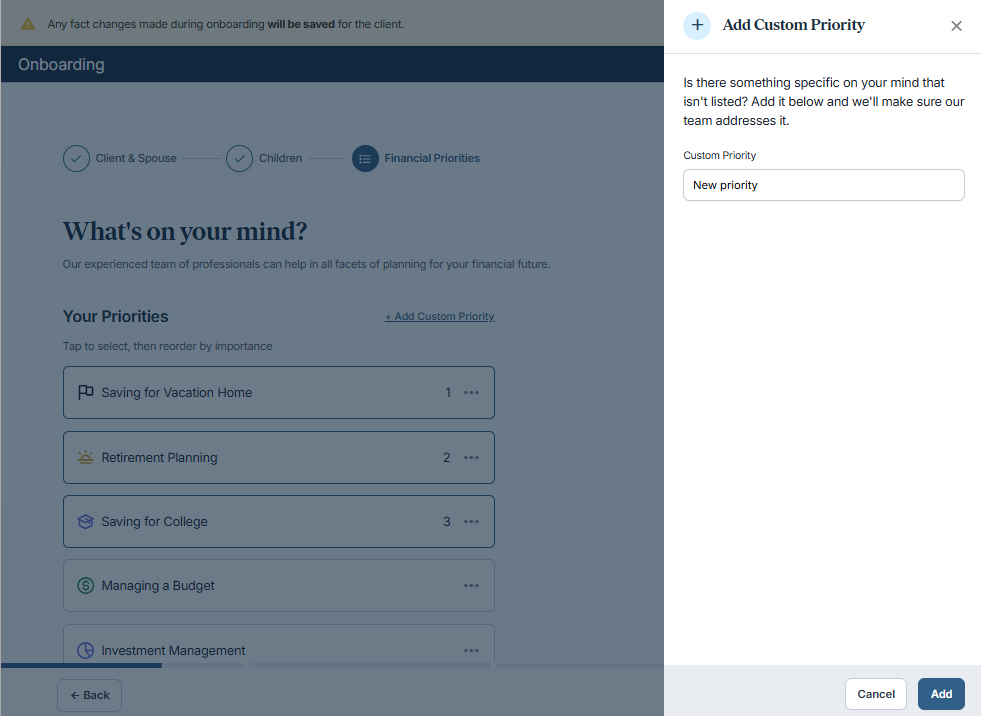
Start every client relationship a step ahead, with a clear view of their goals before planning conversations begin. The new Financial Priorities step in onboarding lets clients identify and rank their most important financial goals, so you can start every relationship a step ahead.
Why This Matters to You
What’s New
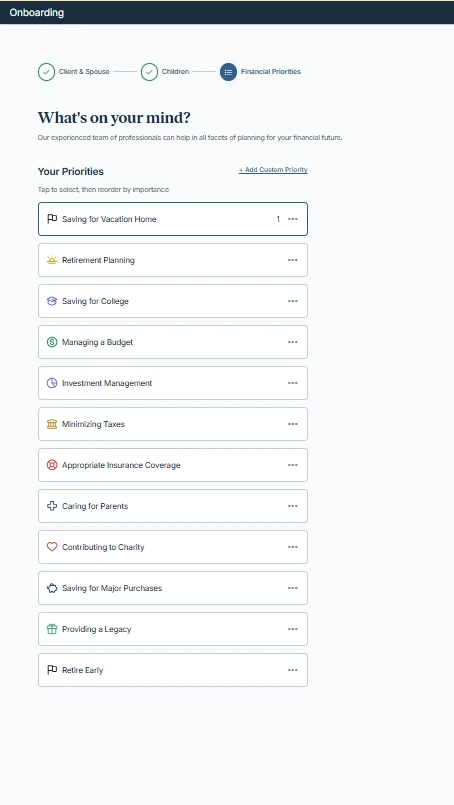
We added a new Financial Priorities page to the streamlined onboarding experience. Clients can select and organize their most important financial priorities.
How It Works
Use It When…
You want to understand a client’s goals and motivations before your first planning conversation, so you can focus the discussion on the outcomes they care most about.
Get Started
Financial Priorities is automatically included in the streamlined onboarding workflow, with no setup required. See the guide to view the updated experience.
Released October 28
Bring tax planning into the same conversation as the rest of the plan. Building on the Tax Bracket report, the full Income Tax report family is now in Decision Center, making it easier to analyze federal and state tax outcomes alongside other planning scenarios.
This release brings the number of planning reports in Decision Center to over 50, keeping discussions, analysis, and recommendations in one centralized planning workspace.
Why This Matters to You
With more tax insights in one interactive experience, you can:
What’s New
Eleven new Income Tax reports, covering deductions, federal and state taxes, and alternative minimum tax are now available in Decision Center. With more tax insights in a single interactive experience, you can better evaluate strategies and help clients understand how financial decisions may affect their taxes.
How It Works
Open the Income Tax report in Decision Center and click into any column to see the supporting details. The new reports include:
Use It When…
A client is weighing a strategy, like a Roth conversion or a larger retirement withdrawal, and asks how it will affect their taxes. You can move from the overall tax view into federal, state, deduction, or AMT detail right in the meeting, so the conversation stays focused on the decision.
Get Started
Open the Income Tax report in Decision Center to bring deeper tax analysis into your next client conversation.
Released October 28
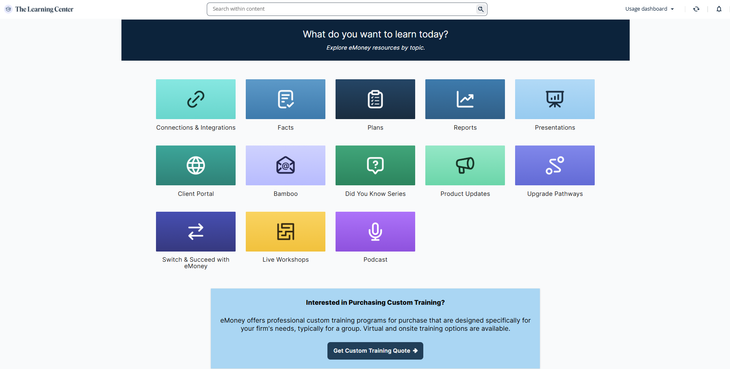
Find training that aligns more naturally with what you are working on. The Learning Library is now organized by topic rather than proficiency level, creating a simpler and more intuitive experience.
Why This Matters to You
What’s New
The Learning Library has moved from a proficiency-based structure to a topic-based structure. Learning content is now grouped into categories that reflect how you think about and use the platform, making it easier to locate the resources most relevant to your needs.
The navigational menu will also be updated to include:
How It Works
Use It When…
You want to better understand a specific area of the platform and easily find related training in one place.
Get Started
Check out the guide, then visit the Learning Library and choose a topic to find training for your next task.
Released October 28
Highly Requested Feature
Users who sign in to eMoney directly now have the option to use an authenticator app as their second factor for multi-factor authentication (MFA).
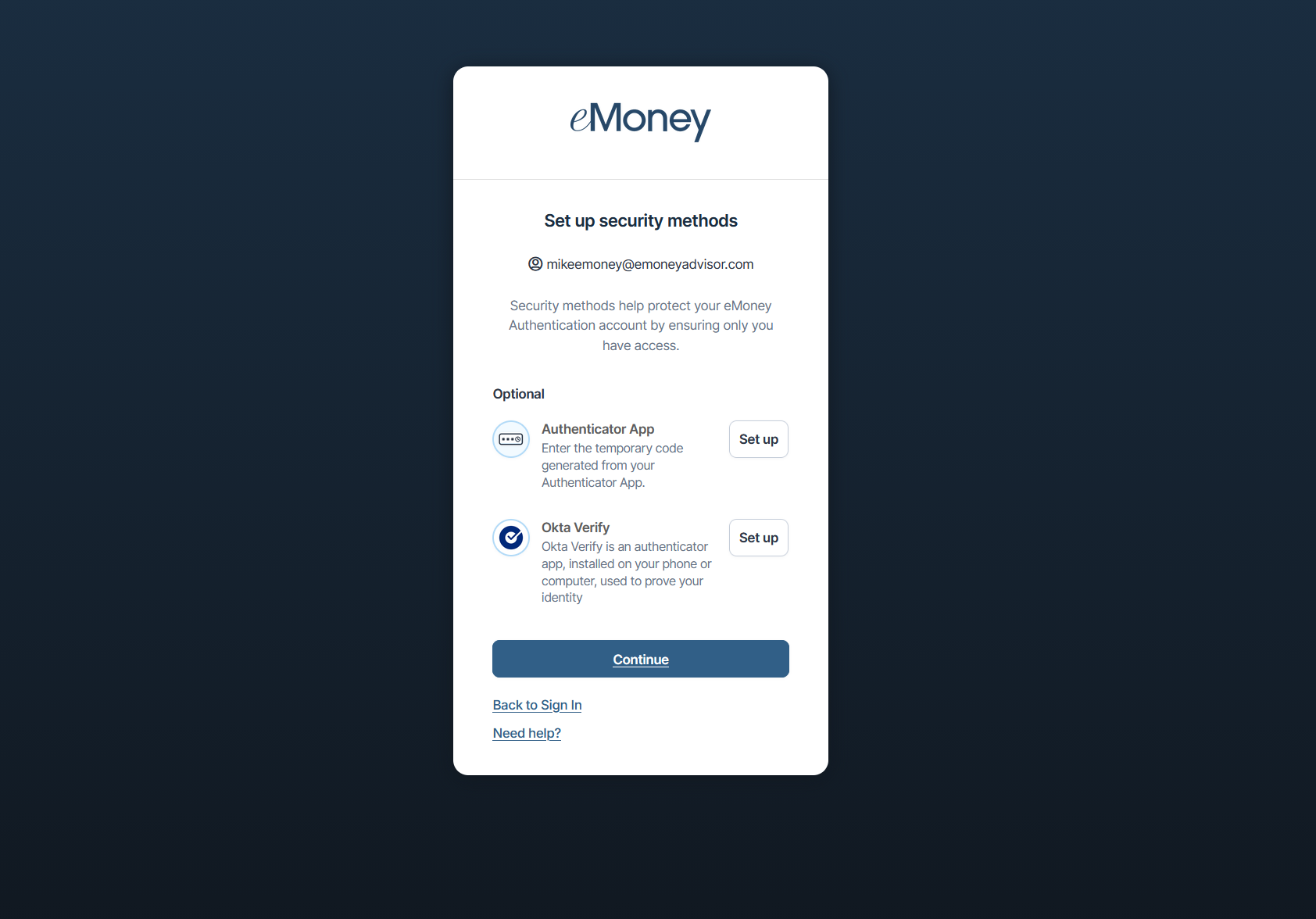
In addition to receiving verification codes via SMS, users can choose from popular authenticator apps like Okta Verify, Google Authenticator, Microsoft Authenticator, or supported password manager applications.
This enhancement gives you and your clients greater flexibility in how you verify your identity when logging in. Authenticator apps can provide a more convenient experience in situations where text messages are unavailable, such as when traveling or experiencing limited cellular service, while also supporting stronger security practices.
No action is required from existing users. Those who prefer to continue using SMS verification can do so, while users interested in authenticator apps can set them up during account creation or through their eMoney account settings after release. See how it works.
Note: Advisors will have the ability to reset authentication options on behalf of your client at any time, but you will not have the ability to choose which clients can use them.
Releasing October 31
To support our updated data retention policy and data management practices, transaction history older than five years will be removed by the end of October. This change helps align how transaction data is stored, but if your client relies on longer-term historical records, they may want to retain a copy for their own records.
If access to transaction history beyond the five-year retention period is needed, records can be exported before the end of October, 2026. We recommend letting your clients know about this update in an upcoming meeting, as taking action now ensures they can reference older transaction data when needed, even after it is no longer available in the platform. Financial institutions remain the source of record for transaction history and may provide access to historical records outside of eMoney.
Coming December 2
Delivering intuitive, modern experiences requires continuous focus on the tools and workflows that drive the most value. Maintaining multiple versions of the same functionality can create unnecessary complexity and make it harder to navigate and support the platform.
As part of our ongoing investment in simplifying and modernizing both advisor and client experiences, select legacy workflows will be retired in favor of the enhanced experiences introduced over the past two years.
To help you prepare for these upcoming experience changes, join one of our live training sessions:
Learn more about what you can expect in this on-demand webinar session!
Learn more about what you can expect in this on-demand webinar session!
Why This Matters to You
Planning Experience Updates
Over the past two years, enhanced versions of Needs Analysis, Goal Planning (Plan Comparison), and Foundational Planning have been introduced, allowing users to toggle between classic and updated workflows during the transition.
Goal Planner Tile Removal
The Goal Planner tile will be removed from the Plans page on December 2, 2026, for users with Advanced Planning. Plan Comparison will remain available in Decision Center. To access it, select Plan Comparison from the Mode dropdown menu.
What’s Changing
Effective December 2, 2026
What Remains
Actions to Take
Client Experience Updates
As part of continued investment in the client experience, select legacy workflows will also be retired while newer, more modern experiences are established as the standard.
Client Onboarding
A redesigned onboarding experience is being established as the default client onboarding workflow.
What’s Changing
Why This Matters
Lead Capture
Lead Capture has helped advisors connect with prospective clients and support early financial conversations. As we continue investing in a more modern, end-to-end client experience, we are evolving how prospect engagement is delivered.
What’s Changing
What to Expect
We are introducing a more advanced approach to prospecting that helps advisors attract, qualify, and engage the right clients more effectively.
This new experience will deliver:
Why We’re Making This Change
The current Lead Capture tool has seen limited adoption and no longer reflects advisor needs today. This update creates a stronger, more scalable foundation to support advisor growth.
How to Prepare
Putting It All Together
These updates represent an important step in simplifying the platform and focusing innovation on the experiences advisors and clients use most. By consolidating around modern workflows, we can continue delivering more intuitive, consistent, and scalable planning and client engagement tools.